
How to Change the Favicon in Magento 2 (2 Methods That Actually Work)
How to Change the Favicon in Magento 2 (2 Methods That Actually Work)
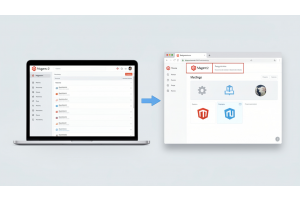
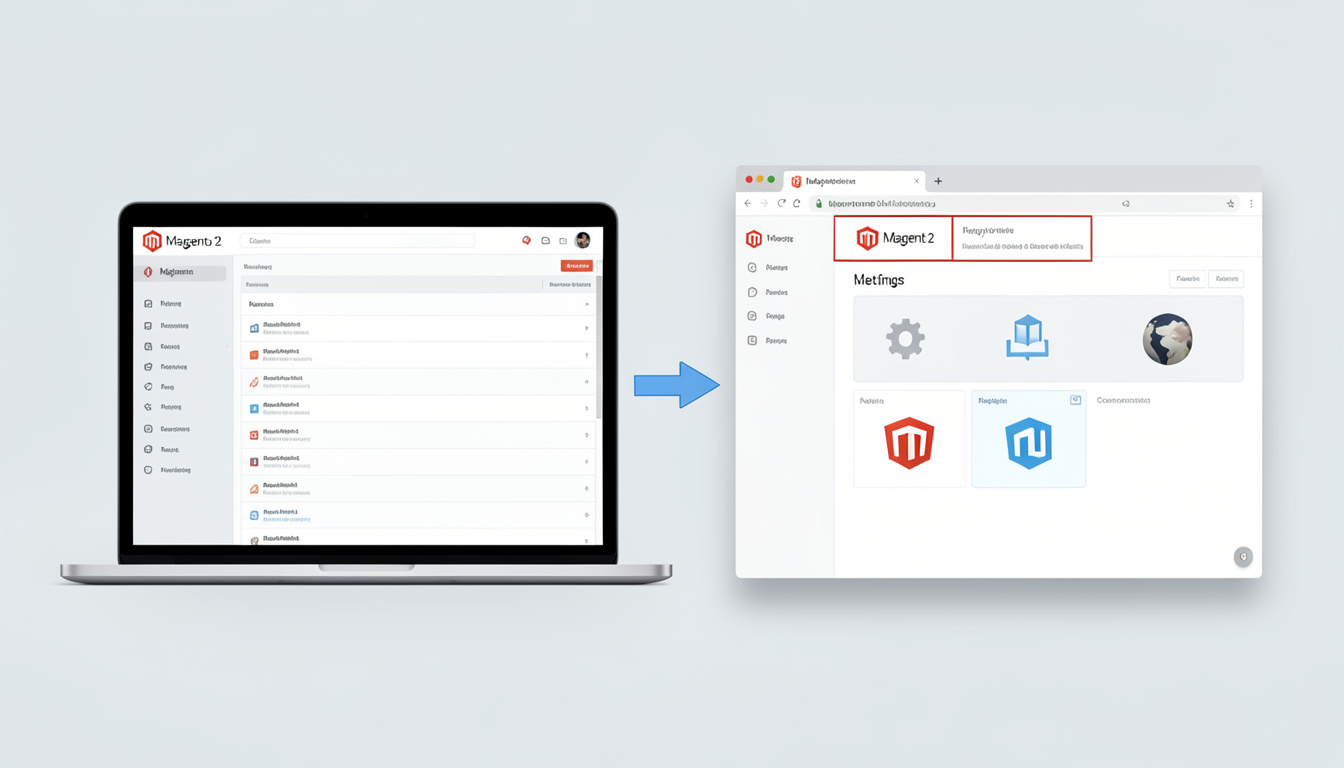
Changing the favicon in Magento 2 takes less than 5 minutes via the admin panel — no developer needed. It's a small change, but a store without a favicon can appear incomplete or unprofessional, which damages user trust A branded favicon also strengthens recognition in browser tabs and mobile searches, improving engagement metrics. FireBear.
Table Of Content
What Is a Favicon?
A favicon is the small icon that shows up in your browser tab next to the page title. It also appears in bookmarks, browser history, and on mobile home screens when users save your site as a shortcut.
It appears in three key places: browser tabs (helping users spot your site among open tabs), bookmarks and favorites, and the address bar in some browsers.When someone has 10 tabs open, your favicon is what gets you found. It's a micro-branding element that pays off every single session.
Magento 2 Favicon Requirements
Get this wrong and your icon will look blurry or broken. Here's exactly what Magento 2 accepts:
| Requirement | Details |
|---|---|
| Accepted Formats | .ico, .png, .jpg, .svg |
| Recommended Format | .ico |
| Standard Sizes | 16×16 px or 32×32 px |
| Where It's Stored | /pub/media/favicon.ico or /pub/static/frontend/ |
The most widely supported format is .ico. Free online tools let you convert any image to .ico format easily.
Method 1: Change the Favicon via the Admin Panel (Recommended)
This is the easiest route. No code, no theme edits.
- Step 1 — Log in to your admin panel.
- Step 2 — Go to Content → Design → Configuration.
- Step 3 — Find your store view and click Edit.
- Step 5 — Upload your favicon file.
- Step 6 — Click Save Config.
- Step 7 — Go to System → Cache Management → Flush Magento Cache.
Restart your browser and the new favicon should appear.
This only makes sense for large enterprise stores with in-house development teams. For everyone else, it's overkill.
Tip
To enhance your eCommerce store’s performance with Magento, focus on optimizing site speed by utilizing Emmo themes and extensions. These tools are designed for efficiency, ensuring your website loads quickly and provides a smooth user experience. Start leveraging Emmo's powerful solutions today to boost customer satisfaction and drive sales!
Method 2: Change the Favicon via Theme Files
Use this if you need the favicon set at the theme level — useful for multi-store setups or when you want it version-controlled.
Step 1 — Find your theme directory
app/design/frontend/Vendor/Theme/web/images/
Step 2 — Upload your favicon
Drop your favicon.ico file into the /images/ folder.
Step 3 — Declare it in layout XML (optional)
Open or create this file:
Magento_Theme/layout/default_head_blocks.xml
Add this:
<head>
<link rel="icon" type="image/x-icon" href="images/favicon.ico" />
</head>
Step 4 — Deploy static content
php bin/magento setup:static-content:deploy
Step 5 — Flush the cache
php bin/magento cache:flush
Quick Comparison: Admin Panel vs Theme Files
| Factor | Admin Panel | Theme Files |
|---|---|---|
| Technical skill needed | None | Intermediate |
| Time to complete | ~2 minutes | ~10 minutes |
| Works for multi-store | Per store view | Theme-wide |
| Survives theme updates | Yes | Needs re-checking |
| Best for | Most stores | Developers / version control |
Favicon not updating
This is one of the most common issues. In most cases, the favicon appears outdated due to browser caching. Try opening your website in an incognito or private browsing window—if the updated favicon appears there, the issue is related to cache. If it still does not update, clear the Magento cache by navigating to System → Cache Management and flushing the cache.
Icon looks blurry or distorted
Favicon quality depends on correct sizing and format. The recommended dimensions are 16×16 px or 32×32 px. Using the .ico format is ideal because it ensures compatibility across all major browsers. Larger images are automatically scaled down, which can result in pixelation or loss of clarity at smaller sizes.
Favicon shows for one store but not another
Magento 2 allows you to configure different favicons for each store view or theme. This is especially useful for multilingual or multi-regional setups where branding may vary. Make sure the favicon is correctly assigned under each store view’s configuration and that the appropriate theme settings are applied.
Conclusion
Updating your Magento 2 favicon is a 5-minute job that improves how professional your store looks across every browser tab, bookmark, and mobile shortcut. Use the admin panel method unless you have a specific reason to go the theme-file route. Clear your cache after every change — that solves 90% of favicon issues before they become problems.
FAQs
How do I change the favicon in Magento 2?
You can change the favicon in Magento 2 by going to Content → Configuration, selecting your store view, and uploading the favicon image under the HTML Head section. Save the configuration and clear the cache to apply the changes.
What are the two methods to update a favicon in Magento 2?
The two common methods are: (1) uploading the favicon via the admin panel under Content → Configuration, and (2) manually placing the favicon file in the theme or static directory and referencing it through theme configuration or deployment.
Why is my new favicon not showing after updating it?
This is usually due to caching. Clear your browser cache or test in an incognito window. If the issue persists, flush the Magento cache from System → Cache Management.
What file format should I use for a favicon in Magento 2?
The recommended format is .ico for maximum browser compatibility. Magento also supports .png, .jpg, and .svg, but .ico is the most reliable choice.
What size should a favicon be for Magento 2?
The standard favicon sizes are 16×16 px or 32×32 px. Using correctly sized images helps avoid blurriness or distortion when the icon is displayed in the browser.
Can I set different favicons for different store views?
Yes, Magento 2 allows you to assign different favicons for each store view or website. You can configure this separately under each store’s Content → Configuration settings.
Where is the favicon stored in Magento 2?
After uploading, Magento stores the favicon in the media directory, typically under /pub/media/favicon/. In some setups, it may also be referenced within theme or static files depending on the method used.
Do I need to redeploy static content after changing the favicon?
In production mode, you may need to redeploy static content and flush the cache for the favicon change to appear properly across all pages.
Why does my favicon appear blurry?
Blurriness usually occurs when the favicon is too large or not properly optimized. Use a correctly sized image (16×16 or 32×32 px) and prefer the .ico format to maintain clarity.
Does changing the favicon affect SEO?
While favicon changes do not directly impact rankings, they improve brand recognition and user experience, which can indirectly support better engagement and click-through rates.